
Support: Livewire Pro CANBus Adapter User Guide
Document Version: 1.2
This guide is applicable to the following BrickHouse Security and BrickHouse GPS products.
GPS Trackers
| Product Features | Livewire Pro |
|---|---|
| LTE Network Connectivity | Cat M1 with 2G fallback |
| Real-Time Track, Trace & Geofencing | Yes |
| Last Gasp Battery | Li-Polymer, 250 mAh |
| Internal Buzzer | No |
| Vehicle Diagnostics Protocol Supported | |
| OBD / Odometer | With CANBus Adapter |
| J1939 Heavy Duty | Yes, native |
| J1708 Heavy Duty (Legacy) | With CANBus Adapter |
Glossary
- 1-Wire: A single-wire data interface (plus ground). It connects one accessory, such as an iButton reader, temperature sensor or I/O Expander, to the Livewire Pro's green wire (#16).
- Analog Input: An input that reads a variable voltage instead of just on/off. The Livewire Pro's analog input (Brown, #7) reads 0 to 32 V DC.
- CAN High / CAN Low: The two wires that carry CANBus data. They must never be swapped.
- CANBus: Controller Area Network. The data network a vehicle's computers use to share engine and dashboard information.
- Digital Input: An input that reports one of two states, such as door open or closed. Livewire Pro inputs trigger when connected to ground.
- ELD: Electronic Logging Device. Records a commercial driver's hours of service.
- GND: Ground. The vehicle's chassis or battery negative connection. Every accessory needs one.
- IMEI: International Mobile Equipment Identity. A 15-digit number uniquely identifying a mobile device, often found on the device label.
- Ignition (ACC / RUN): The vehicle circuit that has power only when the key is on. The Livewire Pro uses it (White, #3) to detect when the vehicle is running.
- J1708: A communication protocol and 6-pin connector standard. Primarily used in pre-2005 heavy-duty vehicles for transmitting data between vehicle components.
- J1939: A higher-layer protocol and 9-pin connector standard. Supersedes J1708.
- Last Gasp Battery: The Livewire Pro's small internal backup battery. It lets the device report after vehicle power is lost.
- Locate: The BrickHouse GPS tracking platform, on the web and in the mobile app.
- LTE Cat M1: Low-power LTE cellular networks built for tracking devices. The Livewire Pro falls back to 2G where they are not available.
- OBD-II: On-Board Diagnostics, Second Generation. A standardized system and 16-pin connector used mostly in light-duty vehicles for self-diagnostics and reporting.
- Open Drain Output: An output that switches the ground side of a circuit. The device it controls gets its positive (+) power separately.
- PTO: Power Take-Off. Engine-driven equipment such as a pump, lift or winch. Often monitored with a digital input.
- Relay: An electrically controlled switch that lets a low-current output control a high-current circuit. Terminals 85 and 86 power the coil; 30 and 87 carry the switched circuit.
- RP1226: A modern heavy-duty diagnostics protocol and 14-pin connector standard. Introduced in commercial vehicles from 2019.
- RS232: A serial data connection standard. The Livewire Pro has two RS232 ports for accessories such as the CANBus Adapter and I/O Expander.
- RX / TX: Receive / Transmit. On a serial connection, TX on one device connects to RX on the other.
- Sleep Mode: A low-power state a device enters when the vehicle is off, to avoid draining the vehicle battery.
- Sync: The CANBus Adapter's process of detecting the vehicle's data format. Runs automatically on first power-up with the ignition on.
- VIN: Vehicle Identification Number. A unique serial number used to identify individual vehicles.
- Wiring Harness: The bundle of color-coded wires that connects a device or accessory to the vehicle and to other devices.
- Y-Cable: An adapter cable that splits an existing port into two, allowing multiple devices to connect to a single source.
Overview
The Livewire Pro CANBus Adapter reads your vehicle's own data network and sends that information to your Livewire Pro. You get engine and dashboard data, such as odometer, fuel level and engine temperature, in the Locate platform without adding separate sensors.
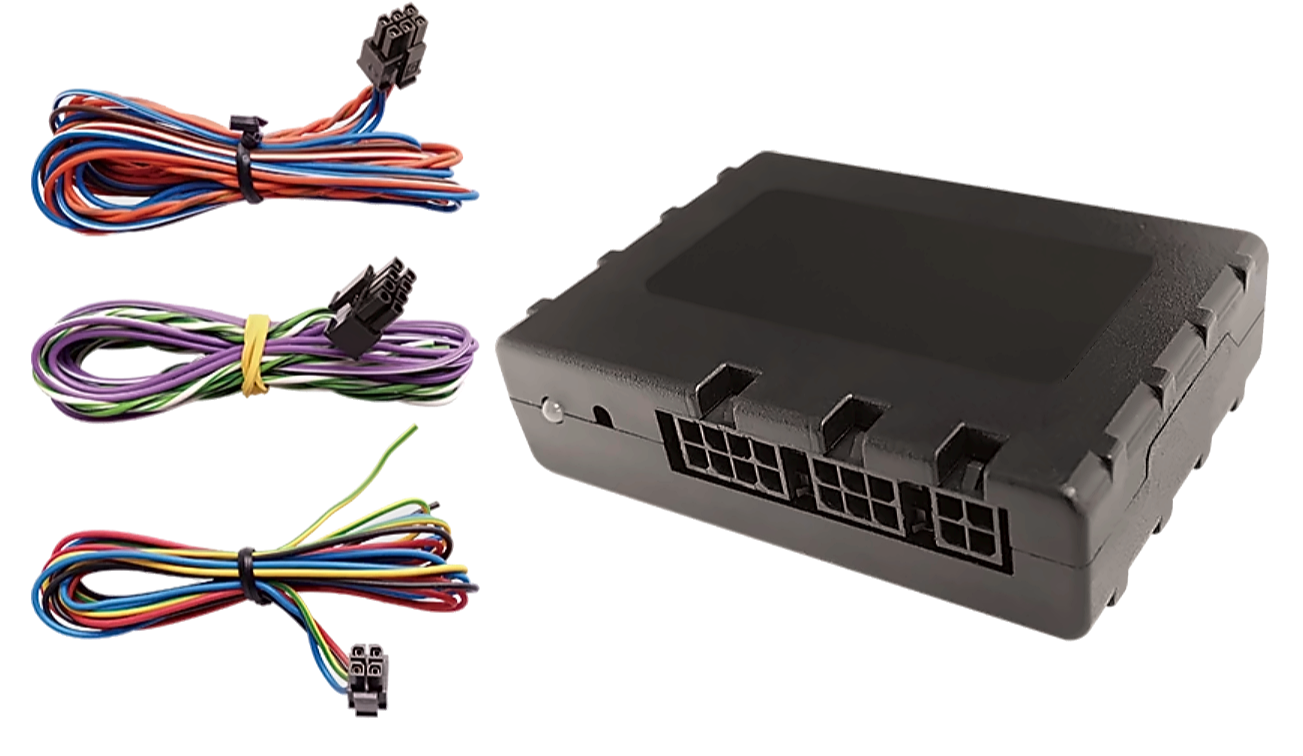
It reads both CANBus (on standard OBD-II vehicles) and J1708 vehicle networks. Supported data depends on the vehicle make and model.
What's in the box
- Livewire Pro CANBus Adapter module
- 4-pin cable: power and serial connection to the Livewire Pro
- 6-pin cable: CANBus connection
- 8-pin cable: J1708 connection
You will also need: a Livewire Pro (sold separately).
How it works
The adapter connects to the vehicle's CANBus wires (and J1708 wires, if the vehicle has them) and decodes the messages the vehicle's computers already send. It then passes that data to the Livewire Pro over an RS232 serial connection, and the Livewire Pro reports it to Locate.
- Automatic vehicle recognition. On first power-up with the ignition on, the adapter syncs to the vehicle and learns its data format.
- Sleep and wake. When the vehicle sleeps, the adapter drops to 1 mA or less. It wakes as soon as the vehicle's network becomes active.
- Extra signals. The adapter can also send an ignition signal and a "vehicle network active" signal to the Livewire Pro, and has 3 configurable inputs and 1 configurable output.
The adapter uses one of the Livewire Pro's two RS232 ports. If you also plan to install a Camera or I/O Expander, contact us first so we can plan which accessory goes on which port.
Vehicle data
Depending on your vehicle, the adapter can provide:
- Odometer (total vehicle distance)
- Fuel level
- Fuel consumption
- Engine speed (RPM)
- Engine temperature
- Door, lock and dashboard indicator status
Not every vehicle shares every value. We will confirm what your vehicle supports during setup.
Specifications
| Specification | Description |
|---|---|
| Vehicle networks | CANBus and J1708 |
| Connection to Livewire Pro | RS232 (TX, RX, GND) |
| Power supply voltage | 7 to 32 V DC (12 V and 24 V vehicles) |
| Current consumption | 11 mA typical (operating); 1 mA max (sleep) |
| Outputs | 3, 100 mA max each |
| Inputs | 3, analog or digital (configurable) |
| Operating temperature | -40 to +80 °C (-40 to +176 °F) |
| Dimensions | 69 × 49.5 × 18 mm (2.72 × 1.95 × 0.71 in) |
| Compatibility | Livewire Pro only |
Connector and wire guide
The adapter has 3 connector sockets, labeled S1, S2 and S3 on the case, plus a status light and a sync button.
| Socket and pin | Wire color | Function |
|---|---|---|
| S1-1 | Blue/Yellow | Serial transmit (TX), to Livewire Pro |
| S1-2 | Blue/Red | Serial receive (RX), from Livewire Pro |
| S1-3 | Red | Power supply (+) |
| S1-4 | Black | Ground |
| S2-1 | Orange/Green | CAN High |
| S2-4 | Orange/Brown | CAN Low |
| S2-2 | Brown | Ignition output (+): on when the vehicle's ignition is on |
| S2-3 | Dark Blue | Network active output (-): grounds when the vehicle network is awake |
| S2-5 | Brown/White | Input 1 |
| S2-6 | Dark Blue/White | Input 2 |
| S3-4 | Green/White | J1708 A |
| S3-8 | Green/Black | J1708 B |
| S3-7 | Violet/White | Input 3 |
| S3-3 | Violet | Output 3 (-) |
Insulate and tape back any wire you do not use.
Wiring
CAN and J1708 wire locations differ by vehicle. Contact us with your vehicle's make, model and year before installing, and we will help you find the right wires.
1. Vehicle network
| Adapter wire | Connects to |
|---|---|
| CAN High, Orange/Green (S2-1) | Vehicle CAN High wire |
| CAN Low, Orange/Brown (S2-4) | Vehicle CAN Low wire |
| J1708 A, Green/White (S3-4) | Vehicle J1708 A (+) wire, if present |
| J1708 B, Green/Black (S3-8) | Vehicle J1708 B (-) wire, if present |
Tap into the network wires without cutting them. Never swap CAN High and CAN Low.
2. Power and Livewire Pro
| Adapter wire | Connects to | Livewire Pro wire (pin) |
|---|---|---|
| Power, Red (S1-3) | Vehicle battery positive (constant 12/24 V), fused | Same circuit as Livewire Pro Power, Red (#11) |
| Ground, Black (S1-4) | Chassis or battery negative | Same point as Livewire Pro Ground, Black (#6) |
| Serial TX, Blue/Yellow (S1-1) | Livewire Pro RS232 port 1 receive | RX1, Gray & Black (#9) |
| Serial RX, Blue/Red (S1-2) | Livewire Pro RS232 port 1 transmit | TX1, Gray & White (#10) |
If port 1 is already in use, use RS232 port 2 instead: Blue/Yellow to RX2, Orange & White (#4), and Blue/Red to TX2, Orange & Black (#5). Tell us which port you used.
3. Optional signals
| Adapter wire | Connects to | Purpose |
|---|---|---|
| Ignition output, Brown (S2-2) | Livewire Pro Ignition, White (#3) | Use when the vehicle has no easy-to-reach ignition wire. Connect only one ignition source to the Livewire Pro. |
| Network active, Dark Blue (S2-3) | A Livewire Pro digital input, such as Input 1, Orange (#13) | Lets the Livewire Pro know the vehicle is waking up |
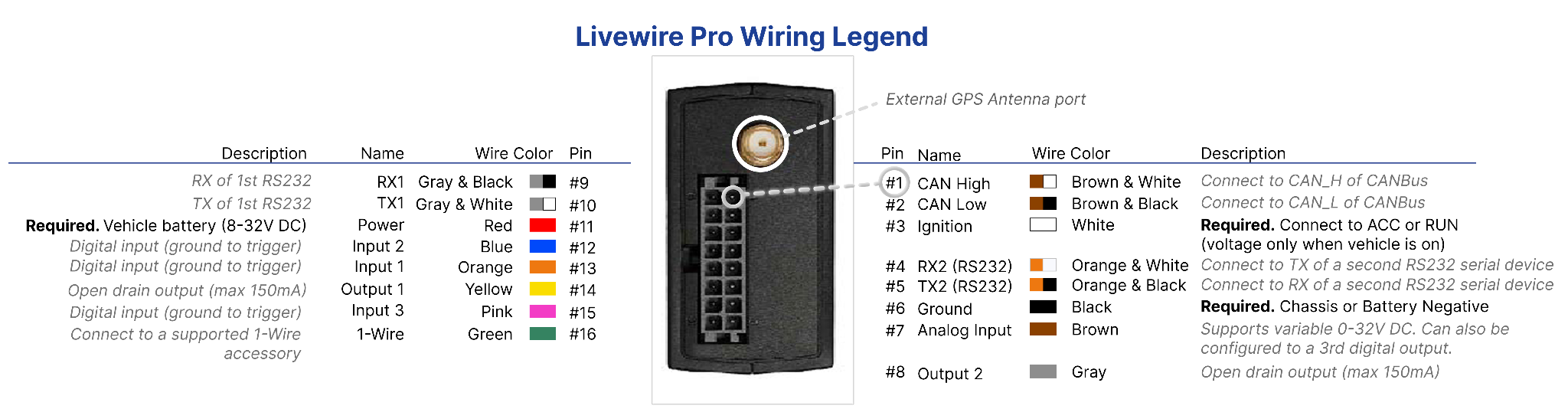
See the Livewire Pro Wiring Legend below for the full layout.
Livewire Pro Wiring Legend
Vehicle compatibility
The adapter works with a wide range of vehicles, but not all. Before you buy or install, send us your vehicle's make, model and year and we will confirm whether it is supported and which data it provides.
CANBus Adapter or J1939 Adapter? If your vehicle is a heavy-duty truck with a 9-pin J1939 diagnostic port, the Livewire Pro J1939 Adapter connects the Livewire Pro to that port directly and may be the simpler choice. Choose the CANBus Adapter for J1708 vehicles and for vehicles without a J1939 port. Not sure? Contact us and we will recommend the right one.
Setup, status light and troubleshooting
Special configuration is required. The CANBus Adapter will not work until we enable it on your Livewire Pro. Contact us before or right after installation and we will set it up for you. Have ready: your Livewire Pro's IMEI or device name in Locate, the vehicle's make, model and year, and which RS232 port you used.
Syncing to the vehicle. With all wires connected, turn the ignition on, then power the adapter. It syncs automatically on first use. To sync again, hold the sync button while powering on until the light turns green (about 3 seconds), then release.
| Status light | Meaning |
|---|---|
| Green, flashing once per second | Receiving vehicle data. Working normally. |
| Green, flashing once every 4 seconds | Vehicle network asleep or not connected. If the ignition is on, check the CAN wiring. |
| Off | Adapter is in sleep mode (vehicle off). |
| Red, flashing | Syncing in progress (up to 30 seconds). |
| Green, solid after sync | Sync succeeded. Power the adapter off, wait 5 seconds, and power it on again. |
| Alternating green and red after sync | Not connected to the CAN network. Check that CAN High and CAN Low are not swapped and the ignition is on. |
| Red, solid after sync | Connected, but this vehicle is not supported. Contact us. |
Installation tips: mount the adapter away from heat, moisture and moving parts; disconnect the vehicle battery before splicing power; fuse every power connection.
Ordering, Technical Support, & Accessory Setup Contact
To order a Livewire Pro CANBus Adapter, check your vehicle's compatibility, or have the adapter configured for your Livewire Pro, contact us:
Expert Phone Support
Representatives available seven days a week, 9am - 9pm ET.
Toll Free: (800) 654-7966
International: +1 (925) 326-3688
Online: brickhousesecurity.com/gps-trackers/livewire-pro-canbus-adapter
Help center: help.brickhousesecurity.com
Need a Hand With Your Account?
Call (800) 654-7966Mar 6th 2024